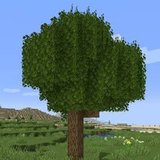

Better Foliage Settings: Configure Leaves, Grass and Particles
Better Foliage settings are useful only when you know which project you installed. A tutorial that describes the original mod's configuration menu may not apply to Renewed. Start by identifying the jar in your mod list, then adjust the controls your release actually provides.
Establish a clear visual baseline
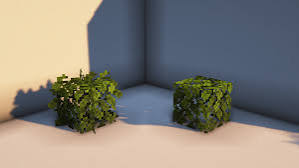
Choose a small scene containing a leaf block, a grass patch and open sky. The reference image uses isolated leaf blocks, which is a useful way to compare shape without a dense forest hiding the edges. Take a screenshot and save the current configuration before making changes.
Separate shape from lighting
Turn shaders off during your first comparison. Keep the same resource pack and video settings throughout the test. If both the lighting and foliage model change at once, it becomes difficult to tell which setting produced the result.
Find the original mod's configuration
The original project's documentation directs players to its configuration GUI through the mod list. For its Forge 1.14 and later builds, Cloth Config is needed to access that GUI; check the matching release requirements. Avoid assuming an old keyboard shortcut exists in every build.
Change one effect at a time
If your release exposes controls for leaf appearance, grass or particles, adjust one group and revisit the test scene. Record the previous value. Option names and ranges can vary, so use the labels in your installed build rather than pasting values from a different version.
Understand how Renewed handles models
Renewed uses resource-pack-based models for many visual features. Its description explains that model changes are not all exposed as ordinary configuration toggles. Disabling a particular model can involve overriding the relevant blockstate with vanilla data in a resource pack.
The Renewed description explains this model approach. Keep particle options separate from resource-pack overrides when deciding what to change.
Avoid editing the distributed jar
For model customization, make a separate pack using the format and paths appropriate to your game version. Keep overrides limited to the blocks you intend to change. Editing the installed jar directly makes updates and troubleshooting harder because you lose a clean reference copy.
Build a practical settings sequence
- Confirm the default appearance without additional packs.
- Adjust available foliage controls or apply one narrow model override.
- Revisit the leaf block and grass patch from the same position.
- Test a dense forest for movement and visibility.
- Restore shaders only after the foliage result is stable.
Decide what good settings mean for your world
A decorative garden can benefit from fuller silhouettes, while a narrow woodland trail needs clear sightlines. Tune for the area you actually play in. Maximum visible detail is not automatically the most usable result.
Recover from an unwanted change
Close the game before restoring a saved configuration. Disable the last added override pack if models changed unexpectedly, then relaunch the same instance. When you find a combination that looks right, record both the configuration and pack order; together they describe the setup you will need to reproduce it.