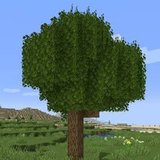

Better Foliage Falling Leaves: Add Atmosphere and Control Particles
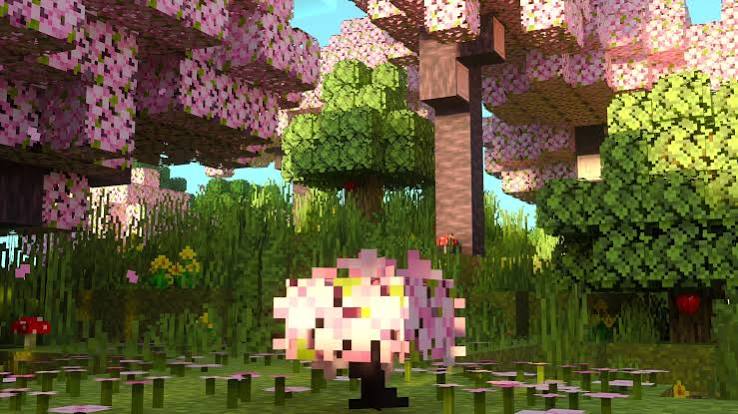
Falling leaves can add gentle movement to a Minecraft grove, but particle effects need a separate check from the tree's model. A canopy may look fuller even when no particles appear. This resource helps you investigate motion without confusing it with textures, placed petals or shader animation.
Identify the effect you are looking for
Distinguish particles from other movement
Watch a single tree for a short period while staying still. A moving leaf-like element may be a particle, while swaying branches can come from a shader. Ground decorations may be blocks or textures rather than fallen particles. Check the effect with shaders disabled when the source is unclear.
The reference blossom scene is useful for atmosphere and color. It does not establish that your foliage release adds cherry trees, a new biome or the pictured flowers.
Check the installed project's controls
Look for particle options in the menus or configuration provided by your exact release. The original project and Renewed have different ways of controlling visual effects. If an online tutorial names a setting absent from your build, confirm the project and version before editing files.
Test a simple vanilla tree first
Use one ordinary supported tree in a quiet clearing. Temporarily remove packs and custom-tree mods. This avoids trying to debug a particle effect and custom vegetation compatibility at the same time.
Tune movement for the scene
Favor subtle activity near a focal point
A calm garden usually benefits from occasional motion that draws attention toward a tree or seating area. Dense particle activity across the whole frame can distract from a house, bridge or flower bed. Use the available controls to compare a quieter setting with the default.
Consider everyday visibility
Walk through the scene and look at nearby objects. Check whether particles hide small details or make movement distracting. A setting that suits a still screenshot may be too busy during exploration.
Investigate missing particles methodically
- Confirm the relevant effect is enabled where your release provides a control.
- Check Minecraft's own particle setting and repeat the observation.
- Test a vanilla leaf block or tree without other packs.
- Compare the view without shaders or extra particle mods.
- Read the installed release's documentation if the effect remains absent.
Do not treat random timing as a failure
Some effects are intermittent. Observe more than one short moment before concluding that nothing happens. Use the same conditions for each comparison so a chance burst does not mislead your diagnosis.
Keep performance and appearance separate
Compare movement smoothness before and after changing particle activity. If performance remains poor even with particles reduced, investigate foliage models, shaders and render distance separately. A particle toggle cannot be assumed to fix every forest-related frame-rate problem.
Create a believable seasonal composition
Pair the motion with a consistent palette and open ground where the eye can rest. Keep the central tree recognizable, and check the view from your main path. The most convincing effect supports the build's atmosphere while remaining unobtrusive in normal play.