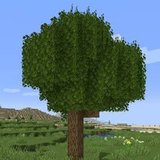

How to Install Better Foliage Mod: A Complete Java Edition Overview
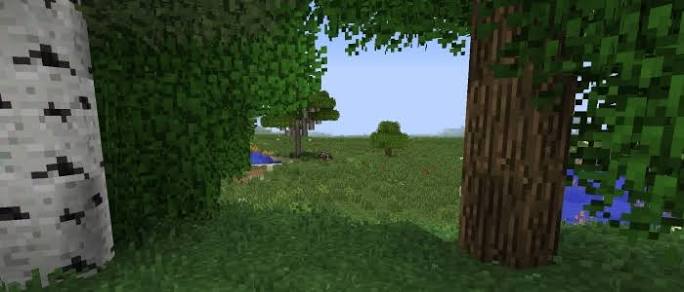
Better Foliage installation starts with matching your game version and mod loader. A file with the right name can still fail if it belongs to another Minecraft release or another loader. This resource explains how to prepare a separate profile, install the required files, and confirm that the visual changes are working before you alter your main setup.
Check your Minecraft installation first
Record the exact version and loader
Open the profile you intend to use and note the complete Minecraft version, such as 1.12.2 or 1.16.5. Record whether it uses Forge or Fabric. A Forge jar cannot be treated as a Fabric jar, and matching only the first two parts of a version number is not enough.
Use Minecraft Java Edition for the original Java mod. A Java jar does not install into Bedrock's resource-pack menu. If you use a modpack launcher, work inside that instance rather than the default Minecraft directory.
Make a recoverable test profile
Duplicate your existing instance where your launcher supports it, or create a separate game directory. Copy a world for testing instead of opening your only save. Keep the original mod list and configuration so that you can return to a known working setup.
Choose the project and required libraries
The original project and Better Foliage Renewed are separate downloads. Choose a file that explicitly lists your Minecraft version and loader. Do not assume that a modern-looking screenshot means an old release supports a newer game.
The original project's requirements vary by release: Forge 1.12 uses Forgelin; Forge 1.14 requires Kottle and MixinBootstrap; Forge 1.15 requires Kottle; Forge 1.16 uses Kotlin for Forge. Original Fabric builds require Fabric API and Fabric Language Kotlin. Verify dependency versions against the selected file rather than collecting every library on this list.
The original author's project page documents these requirements and distinguishes release builds from Fabric beta builds. Use its file details when a launcher reports an additional requirement.
Install the files in the correct instance
- Launch the chosen mod loader once and close Minecraft completely.
- Open that profile's game directory using your launcher's folder option.
- Place the matching Better Foliage jar and required dependency jars in its mods folder.
- Remove duplicate versions of the same mod from this test instance.
- Start the same profile and confirm that Better Foliage appears in the mod list.
Avoid the wrong mods folder
The default Windows directory is often inside the user's AppData Minecraft folder, but launchers can use separate directories. A mod that never appears in the list is a reason to check the instance path before changing its settings.
Verify the result in a small world
Load a simple area with ordinary grass and vanilla trees. Compare the same view before and after enabling the mod. Begin without shaders or additional resource packs so that other visual changes do not obscure the result.
If startup fails
Read the first useful error in the launcher's log. Check for a missing dependency, a mismatched loader, or an unsupported game version. If the isolated profile works, reintroduce other mods in small groups; that gives you a clearer diagnosis than repeatedly replacing the foliage jar.
Keep the working installation reproducible
Record the game version, loader build, mod filename and dependency filenames after your successful test. Keep a copy of the configuration alongside that record. You now have a verified installation you can tune gradually, with a clear way to undo a change that causes a problem.