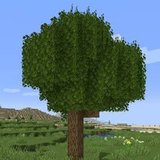

Better Foliage FPS Overview: Reduce Lag Without Losing the Forest Look
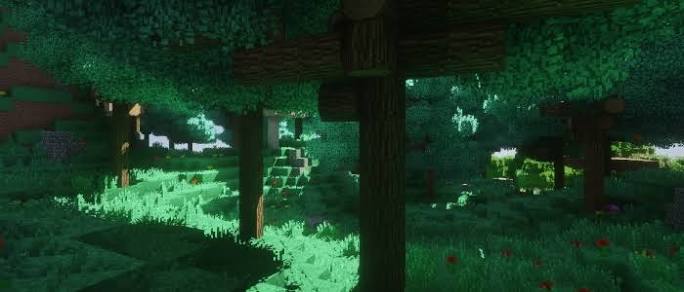
A Better Foliage FPS drop is easier to solve when you measure the same scene before changing settings. Dense forests combine many visible surfaces with shadows, particles and terrain loading. This resource uses controlled comparisons to help you find the expensive part of your own setup instead of relying on a promised FPS gain.
Choose a repeatable benchmark scene
Test both a clearing and a forest
Find an open area and a second view facing dense leaves. Use the same screen resolution, camera direction and render distance for each comparison. Let the nearby terrain finish loading before observing performance, then walk a short route through the trees.
Record the normal frame rate and whether movement feels uneven. A single peak number can hide repeated stutters. If your setup provides a frame-time graph, look for spikes as well as the average result.
Separate foliage cost from shader cost
Run three controlled comparisons
First test your profile without the foliage mod and without shaders. Next enable foliage while keeping shaders off. Finally enable your usual shader pack. The difference between each stage helps you decide where to investigate; it is not a universal benchmark for other computers.
If the problem appears primarily in the shader stage, lower shader quality before removing foliage detail. Shadow resolution and effects involving many transparent-looking surfaces may deserve attention, but the available controls depend on the shader pack.
Reduce visible work in sensible steps
- Lower render distance gradually and retest the same route.
- Reduce particle activity where the installed mod or game exposes that control.
- Adjust leaf or grass detail only if your release offers a relevant setting.
- Test a lighter resource pack when a high-resolution pack is also enabled.
- Close background applications that are competing for system resources.
Do not use memory as a universal fix
Allocating more RAM does not automatically remove a rendering bottleneck. Check whether the game is actually running out of memory before changing launcher allocation. Excessive allocation can also leave less memory for other applications.
Check renderer compatibility before adding optimizers
The original project's published compatibility notes identify limitations with some rendering combinations, including Sodium. Treat renderer changes as compatibility decisions, not guaranteed upgrades. Read the notes for your exact foliage and renderer versions and test them in a duplicate profile.
Renewed needs a different tuning approach
Many Renewed models are controlled through resource packs rather than the original mod's configuration menus. Do not follow a settings list that your installation does not expose. Compare pack overrides or shader settings one at a time instead.
Choose a usable target
Decide what smooth gameplay means on your display, then test normal exploration, not just a stationary screenshot. Keep the foliage changes that have the strongest visual effect for the smallest measured cost. Record the successful settings and return to the benchmark after major mod updates so you can spot a regression quickly.