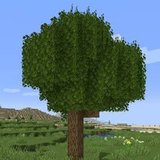

Better Foliage Resource Packs: Fix Model Conflicts and Texture Mismatches
Better Foliage resource-pack compatibility depends on more than a pack's resolution. A texture replacement and a custom block model can affect the same tree differently. When leaves look mismatched or an effect disappears, a controlled pack-order test is usually more useful than reinstalling the mod immediately.
Understand what a resource pack changes
Textures and models have different roles
Textures control surface artwork. Models and blockstates control how a block's appearance is assembled and selected. A pack that changes only a leaf texture can behave differently from one that replaces the entire model. Inspect the pack's description before assuming it only changes colors.
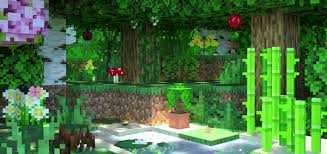
The garden in the reference image contains several decorative details. Use it as visual inspiration, not as a list of features included by a single mod or pack.
Begin with the default resources
Turn off optional packs, leave the foliage mod enabled, and test ordinary oak and birch leaves. Take a screenshot. Re-enable one pack and compare the exact same blocks. If the change appears only after adding that pack, you have isolated a useful starting point.
Test pack priority deliberately
When multiple packs provide the same resource, the higher-priority enabled pack can take precedence. Change the order through Minecraft's resource-pack screen and compare again. Keep notes so that you can restore the original ordering if the experiment makes another block worse.
Account for the foliage project's implementation
The original mod and Renewed do not handle every visual feature in the same way. Renewed describes many of its effects as resource-pack models, so a pack that supplies the same blockstate or model may replace part of its appearance. Original-mod tutorials that rely on generated rendering should not be treated as Renewed instructions.
Use a separate override pack
If you need to restore a specific vanilla model, create a narrow override pack for the exact game version. Keep the normal mod jar intact. Document which block files your pack replaces so that an update does not leave you wondering why only one tree species looks different.
Troubleshoot three common results
Missing textures
A checkerboard-like missing texture suggests a resource path or model reference problem. Remove the last pack, confirm its game-version support, and examine any error messages available in the log. Reinstalling unrelated dependencies will not repair a broken texture path.
Uneven leaf styles
Test each affected tree type in a small display. Some packs replace only selected species, and custom vegetation can use separate resource names. Do not assume an oak result proves every modded leaf is supported.
Detail disappears after reordering
Return to the default-resources comparison. Identify the pack that supplies the competing model and decide whether you prefer its appearance or the foliage model. Priority is a design choice as well as a troubleshooting tool.
Save a reproducible pack setup
Record the pack filenames, their game-version requirements and their order once the scene looks right. Recheck a leaf display after changing any pack. A short controlled test protects the visual consistency of a much larger build.