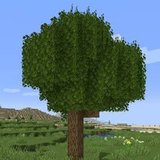

Better Foliage Screenshots: Compose Detailed Minecraft Landscapes
Better Foliage screenshots are strongest when they show a readable scene rather than the largest possible amount of greenery. A clear subject, a restrained background and consistent lighting help viewers understand the landscape. This resource focuses on composition and capture rather than claiming that a single mod supplies every visible object.
Choose one subject for the frame
Decide what the viewer should notice first
Pick a tree, garden entrance, pond or decorative plant group. Move the camera until that subject separates from the background. If several objects compete equally for attention, simplify the scene or choose a different angle.
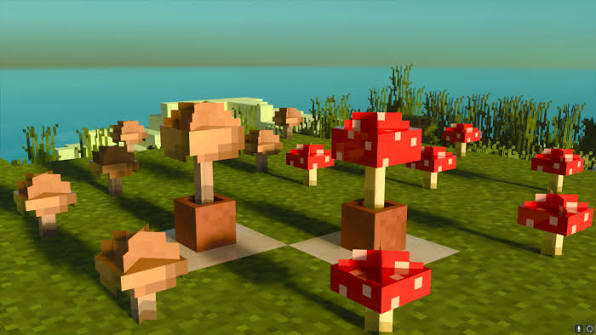
The reference image uses red and brown mushrooms as clear subjects against a quieter horizon. Their specific models may come from other assets; the useful lesson is how color and spacing make the subjects recognizable.
Give the scene depth
Place a small amount of foliage near the foreground, the subject in the middle distance and a quieter background behind it. Avoid filling every layer with equally dense leaves. Open water, sky or a plain wall can help the subject's silhouette stand out.
Keep foreground plants out of the focal point
A branch near the camera can frame the scene, but it should not cover the object you want to show. Compare the shot from a slightly higher and slightly lower position. Small movements often improve separation more than adding extra decorations.
Control light before capture
Choose a time of day that reveals the shapes you need. Side lighting can make trunks and models easier to distinguish, while strong backlighting can turn the subject into a dark silhouette. Judge the actual result rather than assuming one time is always best.
Protect bright and dark detail
If you use shaders, inspect the brightest sky and deepest foliage shadow. Adjust the documented lighting controls until both retain useful detail. Avoid excessive bloom that erases small leaves or flowers around the focal point.
Capture a clean comparison when demonstrating the mod
Keep the camera position, field of view, weather, resource packs and lighting the same between the before and after views. Change only the foliage setup. Otherwise, a brighter shader preset can make a comparison look dramatic without showing what the mod actually changed.
Name visual components accurately
When describing the image, distinguish foliage enhancements from shader lighting, resource-pack textures and separately placed models. Do not identify a shader or vegetation mod solely from an image if you cannot confirm it.
Prepare the image for its destination
Hide the interface using the control appropriate to your game setup, then capture at a resolution suitable for the intended page or display. Check the original screenshot for unwanted overlays before cropping. Keep an untouched copy so you can produce a different crop later.
Avoid stretching a small screenshot
A low-resolution image cannot supply detail it never captured. Display it proportionally and use a new higher-resolution capture when you need a large hero image. If placing the picture on a website, write alt text that describes the actual scene rather than repeating a focus keyword mechanically.
Select the clearest final frame
Compare a few angles and choose the one with the strongest subject separation. Remove distracting edge objects and keep the colors consistent. A deliberate composition communicates the foliage's role more clearly than an overloaded scene whose individual features cannot be identified.