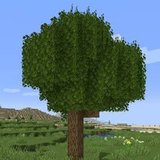

Better Foliage and Shaders: Balance Lighting, Detail and Stability
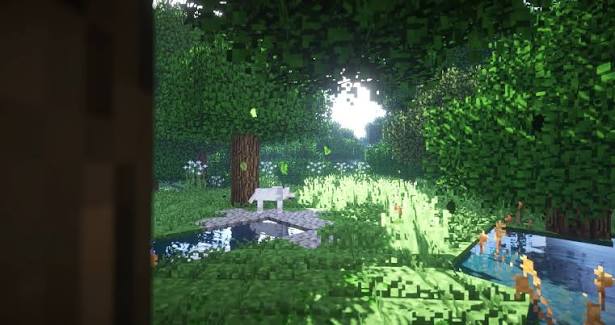
Better Foliage and shaders affect different parts of a Minecraft scene. Foliage changes vegetation appearance, while a shader pack can change lighting, shadows and water. The reference scene shows how several effects can combine, but it cannot identify a shader pack or prove that every detail comes from Better Foliage.
Verify the rendering stack before choosing a look
Record every visual component
Write down your Minecraft version, loader, foliage project, renderer and shader integration. Compatibility belongs to that complete combination. A shader screenshot from another game version is not enough evidence that the same setup will work in yours.
The original mod's published notes describe OptiFine support under Forge and limitations with Sodium. For Renewed or a different renderer, check the corresponding release notes rather than carrying that statement across projects.
Build the scene in stages
- Launch the loader and foliage mod without shaders.
- Confirm that ordinary leaf and grass blocks render correctly.
- Install a shader integration that explicitly supports your game and loader.
- Enable one shader pack using its normal settings menu.
- Revisit the same scene before adjusting its quality options.
Keep a neutral comparison view
Use a patch containing sunlit leaves, shaded ground and a water edge. This exposes overly dark shadows, washed-out greenery and distracting reflections. Keep the weather and time of day consistent while comparing settings.
Adjust lighting for readable vegetation
Protect detail in shaded areas
A forest needs contrast, but very dark shadows can hide paths and trunks. Adjust the shader's available exposure or ambient-light settings gradually. If a control does not exist in your pack, use its documented alternatives instead of assuming all shader menus share the same options.
Avoid excessive bloom
Bright openings in the canopy can become a large white patch when bloom or exposure is too strong. Lower the relevant effect until leaf edges remain visible. Judge the result while moving between the shade and the clearing, since a still image can hide unpleasant brightness changes.
Diagnose artifacts before changing mods
If leaves flicker, appear incorrectly transparent, or move separately from their shadows, first compare the same scene without shaders. Then try the shader's default preset and temporarily remove extra resource packs. This separates a model problem from a lighting or pack interaction.
Make a useful compatibility report
Record which block is affected, whether it occurs without shaders, and the exact installed versions. Include a screenshot from each stage. A reproducible comparison is much more useful than a report that simply says the forest looks wrong.
Keep gameplay and photography settings separate
A high-quality preset may suit a stationary landscape shot while making exploration uncomfortable. Save a lighter everyday setup and increase quality only when needed for screenshots. The right combination preserves visible foliage detail, readable paths and stable movement in the world you actually use.